home faq sitemap
www.viatalk.com / support
   
Home > Knowledgebase > Technical Requirements > Setup and Install > How do I setup my ViaTalk LinkSys PAP2 adapter?

How do I setup my ViaTalk LinkSys PAP2 adapter?
How to set up your ViaTalk broadband phone:


Thank you for purchasing ViaTalk’s broadband phone service. ViaTalk provides the most cost effective, complete broadband phone service package available to United States residential and business customers. Our unparalleled technical support team coupled with our state of the art fiber optic network ensures you that you will have the highest available quality of service at a great price.

Please look through the Install kit and make sure that you find the three (3) following items:
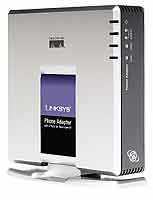
(1) Linksys Phone Adapter with 2 ports for Voice-over-IP pre-configured for ViaTalk
(1) Letter from the ViaTalk CEO
(1) Instructions on How to set up your ViaTalk broadband phone

This setup should take approximately 5 minutes to complete:

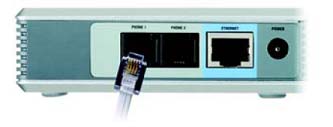
Step 1: Take the Linksys phone adapter out of its box and plug your regular telephone into the adapter. It can be any type of phone as long at it is a touchtone. (Figure 1).


Figure 1


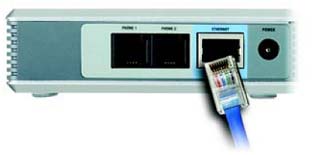
Step 2: Plug your Ethernet cable into the port labeled Ethernet and make sure the other end of the cable is plugged correctly into your broadband high speed modem and that it is powered on and working correctly (Figure 2).


Figure 2


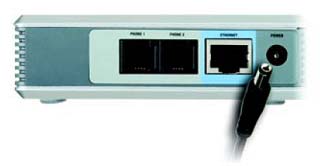
Step 3: Plug in the power cable into the correct port on the adapter and then plug it into a power source (Figure 3).


Figure 3


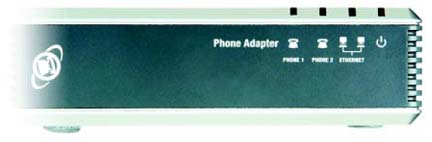
Step 4: Wait until the Power, Ethernet, and Phone line LED’s all light up (Figure 4).


Figure 4


Congratulations, you are now connected to our ViaTalk broadband phone service. Feel free to call anywhere in the U.S. or Canada for one low price. The ViaTalk Team


Rating: (6636 Votes)
Was this answer helpful?: Yes   No
Related Topics
How do I connect my computer and adapter?

How do I reset my adapter?

How do I setup my softphone using Xten?

Will ViaTalk work throughout my home?

Print Article
Add to Favorites
Rate this Article